
Saturday, July 31, 2021
Friday, July 16, 2021

Monday, July 12, 2021
Walkthru Microsoft Whiteboard in Teams [for Gov't] in 1 minute
While long detailed walk-thru's are great, I also think the quick 60-second fly-bys are nice too. :) Given the recent launch of the Microsoft Whiteboard service in Government Community Clouds (GCC), I thought it would be useful to see a very quick introduction to starting and using a whiteboard during a Microsoft Teams meeting in a GCC client. See the video below:
Also, you can see more via TikTok with the post below:
@teamworkcowbell Starting a ##Whiteboard session in a ##MicrosoftTeams##meeting. ##tipsandtricks ##collaboration
♬ original sound teamworkcowbell
Monday, July 5, 2021
Demo: Microsoft Forms in Microsoft Teams
see more at aka.ms/cute4teams
check out and re-share the LinkedIn teaser here
TikTok teaser below:
@teamworkcowbell using forms in Microsoft Teams meetings. ##microsoftteams ##microsoft ##microsoftforms ##teamwork www.teamworkcowbell.com
♬ original sound - teamworkcowbell
Friday, June 25, 2021
Microsoft Forms Surveys in Microsoft Teams meeting - C.U.T.E. Session June 25 2021
Saturday, June 19, 2021
Friday, June 18, 2021
Tuesday, June 15, 2021
Sunday, June 13, 2021
Friday, June 11, 2021
Microsoft Teams Dynamic View, Viva, etc - C.U.T.E. Session June 11 2021
see more at aka.ms/cute4teams
Friday, June 4, 2021
1000 way meetings in Microsoft Teams: Essential Tips! - C.U.T.E. Session June 4 2021
Large 1000-way meetings in Microsoft Teams: Essential Tips! (also, see Best Practices for 1000-way large Microsoft Teams meetings)
see more at aka.ms/cute4teams
Friday, May 28, 2021
Friday, May 21, 2021
Use Microsoft Teams to Combat Meeting Fatigue - C.U.T.E. Session May 21 2021
For more on collaboration in general, visit me at
🌐 teamworkcowbell.com #MicrosoftTeams
🌐 sharepointcowbell.com #SharePoint
🌐 surfaceprobro.com #surface #tablets
Friday, April 16, 2021
Interview with Microsoft Stores training team - C.U.T.E. for Teams
Monday, March 15, 2021
The Six-Screen Setup for Productivity

A little background into the madness behind my 6-screen setup:
- The Microsoft Teams monitor:
- Yep, a monitor almost entirely dedicated to my Microsoft Teams usage. Meetings go on the right half of the screen near my mounted webcam. The main Teams client goes on the right to read new posts, chat, etc. If I really need to actively work in the client, tho, I'll bring it down to Monitor #2 for a while. Videos or YoutTubeTV that I may wanna watch also tend to go up there. When I'm doing Live Events, like my weekly Cute4Teams broadcasts, the Producer view usually goes full-screen up there.
- Main monitor (ultrawide):
- This is my primary place for actively doing work. With ultrawide, it's like the equivalent of 3 screens. I do my email, browser stuff, etc here.
- Peek Screen 1 - Portrait:
- Number 3 and 4 are both Peek Screens - screens that I don't actively work on, but rather that I put windows on that I want to "peek" at. In this case, I also have it in portrait mode for viewing long lists or reading documents full-screen. On Peek Screen 1, I usually have these apps always running:
- YourPhone (for my text msgs, or to remote control my phone [usually for food ordering apps])
- To-Do (to see and/or enter tasks quickly)
- Win10 Calendar (so I can always quickly see my next meeting)
- Peek Screen 2 - Landscape:
- Since it's so far to the left, I only put things here that I need running, but will rarely look at much. Primarily that ends up being Spotify, or whatever music app I'm using at the time. It also gets used to run videos - usually instructional videos from something like LinkedIn Learning.
- The 2nd PC:
- While monitors 1 thru 4 are all connected to the same PC, monitor 5 is connected to a 2nd PC. However, thanks to Mouse Without Borders, I can seamlessly move my mouse from Screen 4 to Screen5 to control the 2nd PC. This monitor is primarily for my 7-year old office buddy when she wants to work on her remote learning work, Minecraft, or Roblox in dad's office instead of her own desk. Otherwise, I use it to watch YouTube TV, or for guests.
- Surface Pro with Pen:
- I'm a pen fanatic. So I need my Surface Pro nearby whenever I feel the urge to grab my pen and write notes. Sometimes my inspiration begins on monitors 1 thru 4 (like some screen shot that I need to annotate. Thanks again to Mouse Without Borders, I can move my mouse from, say monitor 1 to the Surface Pro, then paste the monitor 1 screenshot from the clipboard onto the Surface Pro [usually into OneNote].
Saturday, January 23, 2021
Comments in Office 365
There are so many different places where comments can be added in Office 365 that sometimes it can be confusing, especially when combined with Microsoft Teams where tab comments are chat might also be used. I've listed here all the different ways I could think of....
Wednesday, September 23, 2020

Tuesday, September 22, 2020
Add a MS Ignite Calendar
You can also publish the calendar and share the link (like this one, if you're wondering what a Teams geek like myself is interested in at MSIgnite) with a colleague if you want them to know what sessions you're attending.

Monday, September 21, 2020
Monday, September 7, 2020
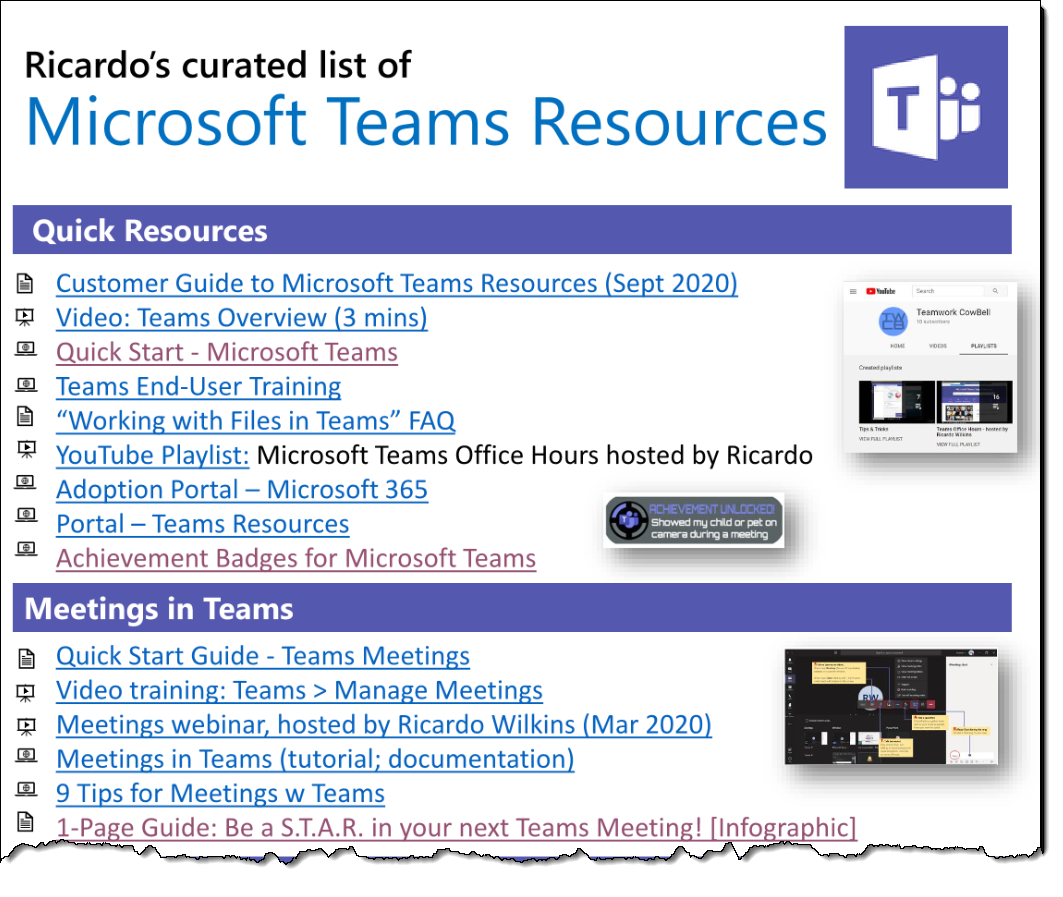
My [un-official] achievement badges for Microsoft Teams!
I play Xbox, so I'm no stranger to Achievements. I thought it would be nice if we could unlock achievements in our use of Teams as well! One of my favorite that I've seen achieved a lot more these days is...

:) Check out this form - if you've performed one of these actions in Microsoft Teams lately, grab your badge - you've earned it!