
Friday, June 25, 2021
Microsoft Forms Surveys in Microsoft Teams meeting - C.U.T.E. Session June 25 2021
Saturday, June 19, 2021
Friday, June 18, 2021
Tuesday, June 15, 2021
Sunday, June 13, 2021
Friday, June 11, 2021
Microsoft Teams Dynamic View, Viva, etc - C.U.T.E. Session June 11 2021
see more at aka.ms/cute4teams
Friday, June 4, 2021
1000 way meetings in Microsoft Teams: Essential Tips! - C.U.T.E. Session June 4 2021
Large 1000-way meetings in Microsoft Teams: Essential Tips! (also, see Best Practices for 1000-way large Microsoft Teams meetings)
see more at aka.ms/cute4teams
Friday, May 28, 2021
Friday, May 21, 2021
Use Microsoft Teams to Combat Meeting Fatigue - C.U.T.E. Session May 21 2021
The Microsoft Meetings Rangers joined us today to talk about aspects of meeting fatigue and how to address them in Microsoft Teams.
For more on collaboration in general, visit me at
🌐 teamworkcowbell.com #MicrosoftTeams
🌐 sharepointcowbell.com #SharePoint
🌐 surfaceprobro.com #surface #tablets
Friday, April 16, 2021
Interview with Microsoft Stores training team - C.U.T.E. for Teams
View the video below to hear one of Microsoft Stores Customer Success trainers talk about the value proposition for the no-cost training that Microsoft provides to it's customers for everything in the Office 365 stack, including Microsoft Teams training:
Monday, March 15, 2021
The Six-Screen Setup for Productivity

A little background into the madness behind my 6-screen setup:
- The Microsoft Teams monitor:
- Yep, a monitor almost entirely dedicated to my Microsoft Teams usage. Meetings go on the right half of the screen near my mounted webcam. The main Teams client goes on the right to read new posts, chat, etc. If I really need to actively work in the client, tho, I'll bring it down to Monitor #2 for a while. Videos or YoutTubeTV that I may wanna watch also tend to go up there. When I'm doing Live Events, like my weekly Cute4Teams broadcasts, the Producer view usually goes full-screen up there.
- Main monitor (ultrawide):
- This is my primary place for actively doing work. With ultrawide, it's like the equivalent of 3 screens. I do my email, browser stuff, etc here.
- Peek Screen 1 - Portrait:
- Number 3 and 4 are both Peek Screens - screens that I don't actively work on, but rather that I put windows on that I want to "peek" at. In this case, I also have it in portrait mode for viewing long lists or reading documents full-screen. On Peek Screen 1, I usually have these apps always running:
- YourPhone (for my text msgs, or to remote control my phone [usually for food ordering apps])
- To-Do (to see and/or enter tasks quickly)
- Win10 Calendar (so I can always quickly see my next meeting)
- Peek Screen 2 - Landscape:
- Since it's so far to the left, I only put things here that I need running, but will rarely look at much. Primarily that ends up being Spotify, or whatever music app I'm using at the time. It also gets used to run videos - usually instructional videos from something like LinkedIn Learning.
- The 2nd PC:
- While monitors 1 thru 4 are all connected to the same PC, monitor 5 is connected to a 2nd PC. However, thanks to Mouse Without Borders, I can seamlessly move my mouse from Screen 4 to Screen5 to control the 2nd PC. This monitor is primarily for my 7-year old office buddy when she wants to work on her remote learning work, Minecraft, or Roblox in dad's office instead of her own desk. Otherwise, I use it to watch YouTube TV, or for guests.
- Surface Pro with Pen:
- I'm a pen fanatic. So I need my Surface Pro nearby whenever I feel the urge to grab my pen and write notes. Sometimes my inspiration begins on monitors 1 thru 4 (like some screen shot that I need to annotate. Thanks again to Mouse Without Borders, I can move my mouse from, say monitor 1 to the Surface Pro, then paste the monitor 1 screenshot from the clipboard onto the Surface Pro [usually into OneNote].
On top of all this, I also use Windows 10 Desktops with monitors 1 thru 4 to quickly switch between different layouts of screens. I use 4 desktops: Work Primary, Work Secondary (usually for spreadsheets or BI reports), Personal and Virtual Machines (dedicated to the VMs I run for customer demos). Does this mean my 4 screens are actually 12??!! (ProTip: I set Microsoft Teams to "Show on All Desktops" so that no matter how much I shift between desktops, my current Meeting and chats are always there)
Sooooo.... the next time they tell you that you don't need so many monitors - don't believe them. ;)
Saturday, January 23, 2021
Comments in Office 365
There are so many different places where comments can be added in Office 365 that sometimes it can be confusing, especially when combined with Microsoft Teams where tab comments are chat might also be used. I've listed here all the different ways I could think of....
Wednesday, September 23, 2020

Tuesday, September 22, 2020
Add a MS Ignite Calendar
If you're attending Microsoft Ignite this week, don't forget that you can create a separate calendar for your sessions - it keeps them from filling up your primary availability calendar, and let's you see them separate from your regular day's events.
You can also publish the calendar and share the link (like this one, if you're wondering what a Teams geek like myself is interested in at MSIgnite) with a colleague if you want them to know what sessions you're attending.

You can also publish the calendar and share the link (like this one, if you're wondering what a Teams geek like myself is interested in at MSIgnite) with a colleague if you want them to know what sessions you're attending.

Monday, September 21, 2020
Monday, September 7, 2020
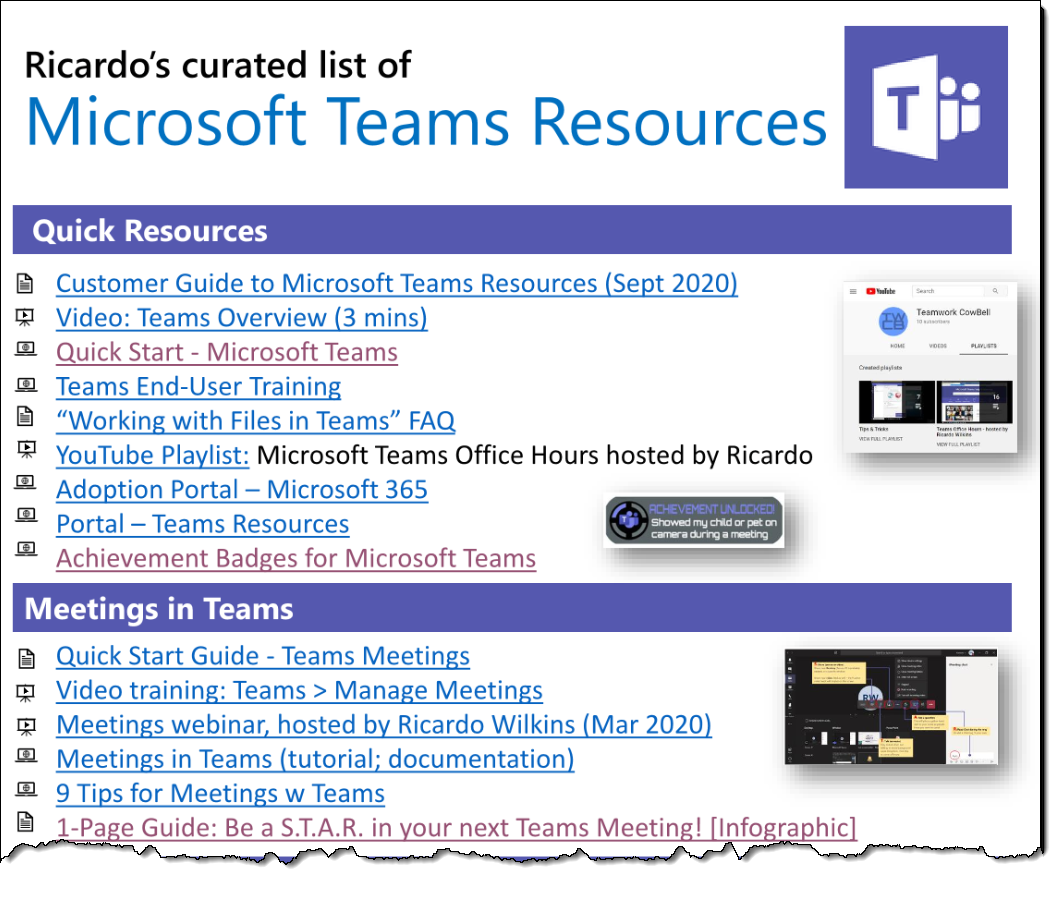
My [un-official] achievement badges for Microsoft Teams!
I play Xbox, so I'm no stranger to Achievements. I thought it would be nice if we could unlock achievements in our use of Teams as well! One of my favorite that I've seen achieved a lot more these days is...

:) Check out this form - if you've performed one of these actions in Microsoft Teams lately, grab your badge - you've earned it!
Friday, September 4, 2020
Why I like the "for a selected [Teams] message" trigger (Hint: it's about Microsoft To Do)
Being able to build and perform additional actions on a Teams message is already nice. But it became extra nice for me when I realized I could use it to help get Teams messages into Microsoft To Do, which helps me follow-up on important posts from my colleagues.
After starting up my Instant Flow...

...I'm able to build out the Card and ToDo task for my new Teams action. In my card, I simply give myself an opportunity to put an extra note on my new To Do task, which, in my Flow, I add to the subject line...

Together, these allow me to create a new To Do from my Teams message, with an optional note...


My new To Do is now visible and ready for me to add to one of my To Do lists, or add a reminder...

But I really like is how my hashtags are still working in this scenario as well, which makes it easy for me to quickly see all my #FromTeams tasks...

Time to get some things done!
Wednesday, September 2, 2020
Different Guest User Scenarios in a Microsoft Teams meeting
As Microsoft Teams meeting participants, we all come in different shapes and sizes and flavors. :) When we're joining someone's meeting, we might be a fellow user in their tenant, or we might be an external Guest visiting their tenant. The meeting might be one that someone created in Outlook, or it might be a Channel meeting.
I tried to show a few of those flavors below, in case it might help someone understand why they're seeing what they're seeing in their next Microsoft Teams meeting (click the images for a larger view):
|
Meeting
Created In |
and the
User is a |
and the
User’s tenant is set to |
The chat
looks like |
|
Outlook |
Guest |
A tenant
different than the meeting |

(no files, only the most basic chat) |
|
Outlook |
Guest |
The same
tenant as the meeting |
 (better chat, but still no files) |
|
Channel |
Guest |
The same
tenant as the meeting |
 (user gets files (view/edit) and can even see chats created prior to the meeting) |
|
Channel |
Guest |
A tenant
different than the meeting |
 (no chat, no files) |
Sunday, August 30, 2020
Tips for using Edge in your Microsoft Teams demos - Profiles and Apps
One of the things I do often with customers is demo Microsoft Teams. Given that Teams is a collaboration tool, it's very useful to be able to work with multiple personas in my demos in order to demonstrate different collaboration scenarios. Edge serves me well for this need, particularly with two of its features - Profiles and Apps.
Profiles for your Personas
Profiles are like little browser sandboxes - they keep the cookies, passwords, history etc of a particular user in its own browser session. While most traditionally used to manage a single persons' 'work' versus 'personal' accounts, they're also extremely helpful for simultaneously working among multiple personas during a demo.
Here, you can see that I'm using three personas in my demo environment - Ricardo, Megan, and the Administrator. These represent three real and distinct users in my demo tenant:
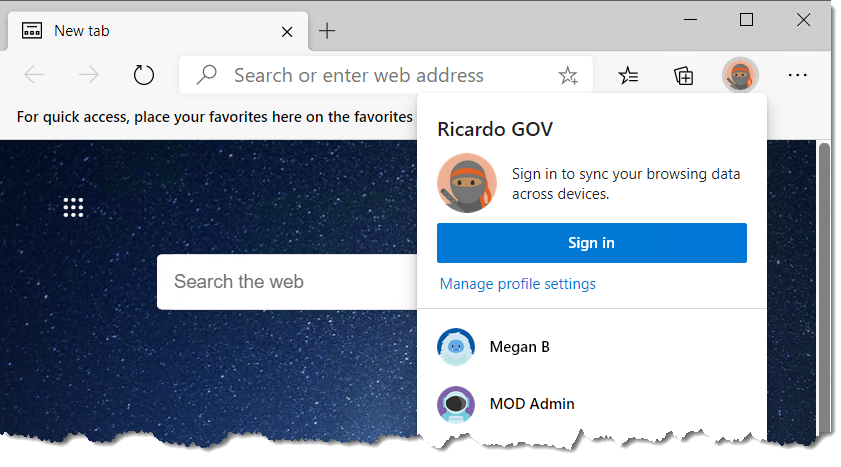
So, as I browse the web as Megan B, for instance, the browser assumes that persona/credentials throughout my entire session.
I'm now also always 1-click away from using a persona, since I can pin each browser profile to my taskbar:


Installing sites as Apps
As you might imagine, the Administrator persona is key, since I often have to make configuration or policy changes as part of my demos. In my Admin browser profile, I'm able to navigate to the M365 admin portal and access, for instance, the Teams Admin Center. But given have often this occurs, I also leverage an Edge feature that lets me 'install' that particular website as what appears to be an App in my Windows environment:

After doing so, not only do I now have my Teams Admin Center in it's own app-looking window, but I even have Start Menu buttons pinned and ready to go so that I can later access the Admin Center with just one click! (It also remembers that the Admin Center 'app' should use the MOD Administrator profile)

These features are a must-have if you want to avoid fumbling around for passwords, and to make sure you're able to highlight multi-user scenarios in your demos.
More info:
- See this in action in this 8-minute video I created for a customer to walk thru how this is done
Thursday, July 2, 2020
File Uploads increased from 15GB to 100GB
I've updated my SmartLink (Working with Files in Teams FAQ) to include the info regarding the upload file size limit recently announced: single file size for an upload increased from 15GB to 100GB:

Subscribe to:
Posts (Atom)